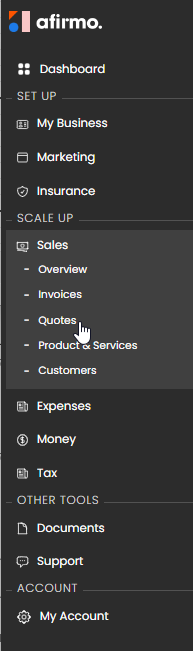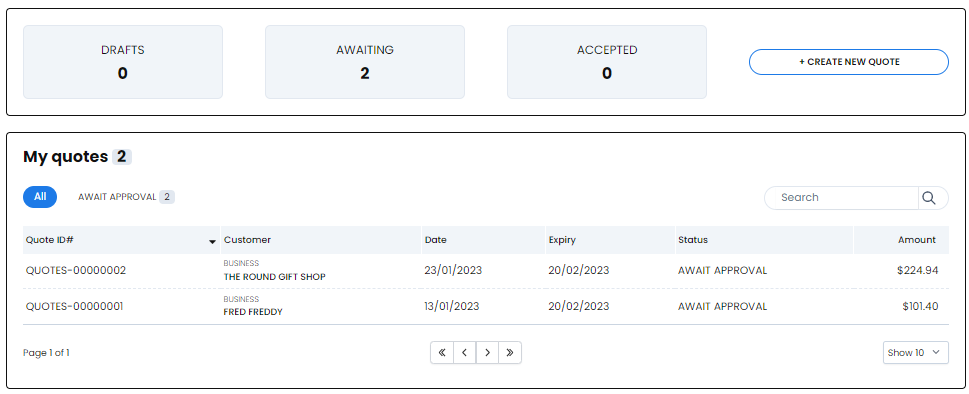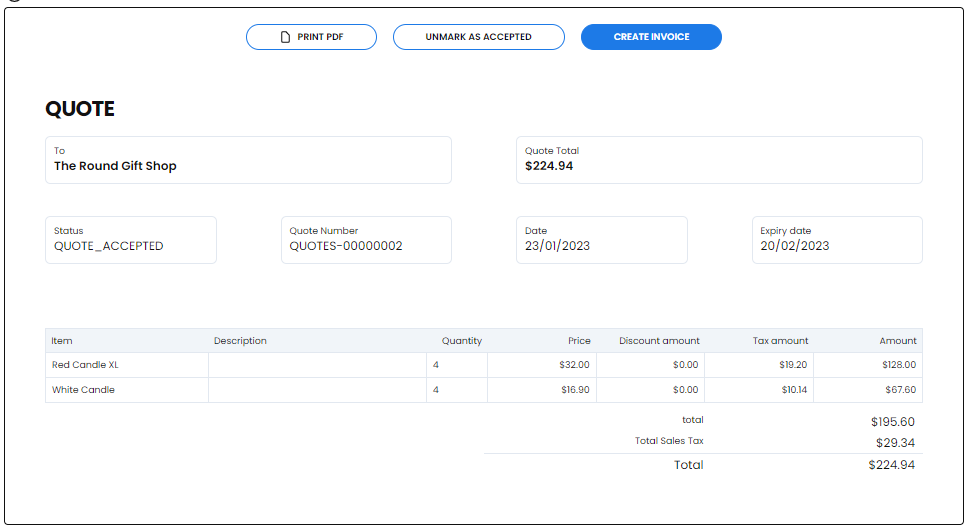
1. Go to Sales > Quotes.
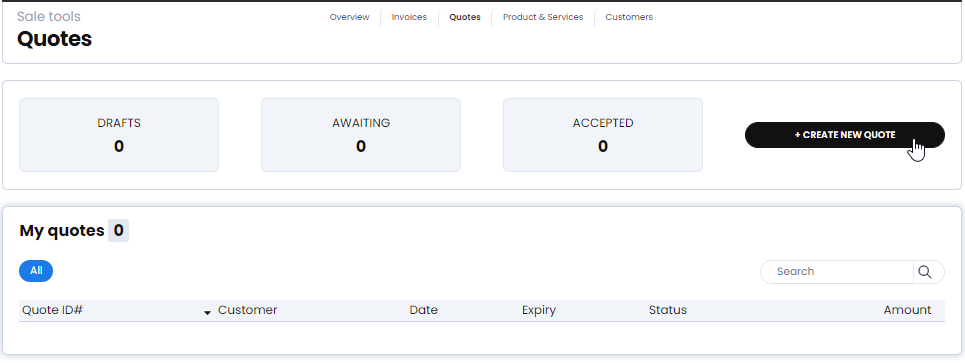
2. Select + quote.
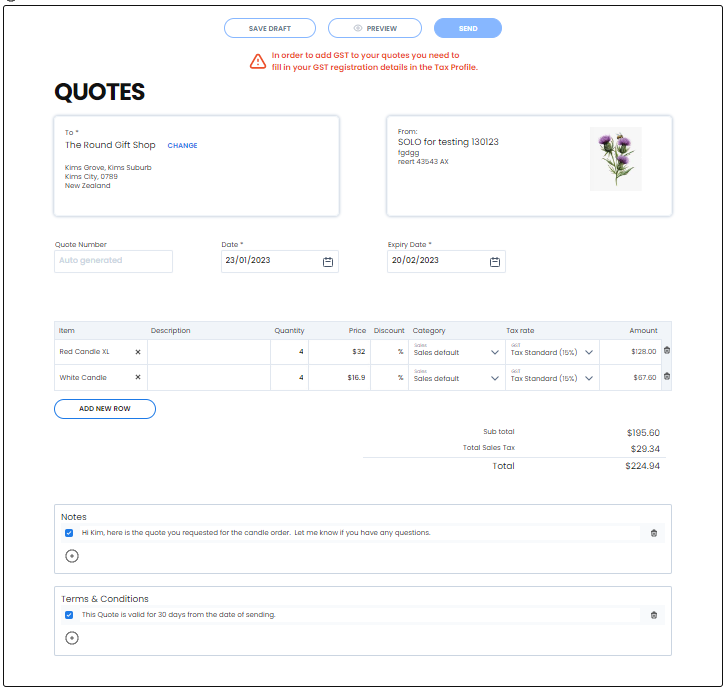
3. Choose the customer in To.
4. Check the quote date and expiry date.
5. Add the products or services, descriptions, quantities and prices.
6. Check the currency, discounts, categories, tax rates and whether the amounts include GST.
7. Add any notes and terms and conditions.
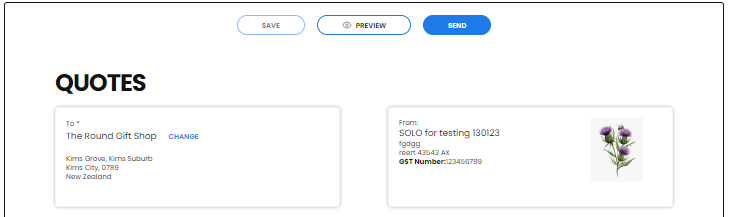
8. Select Save Draft.
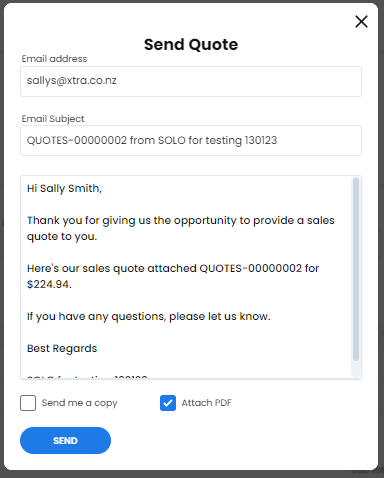
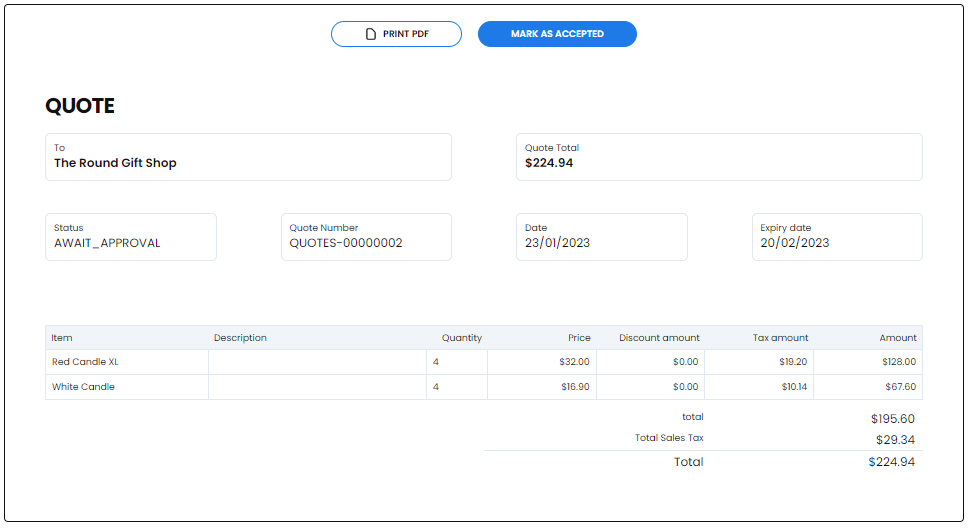
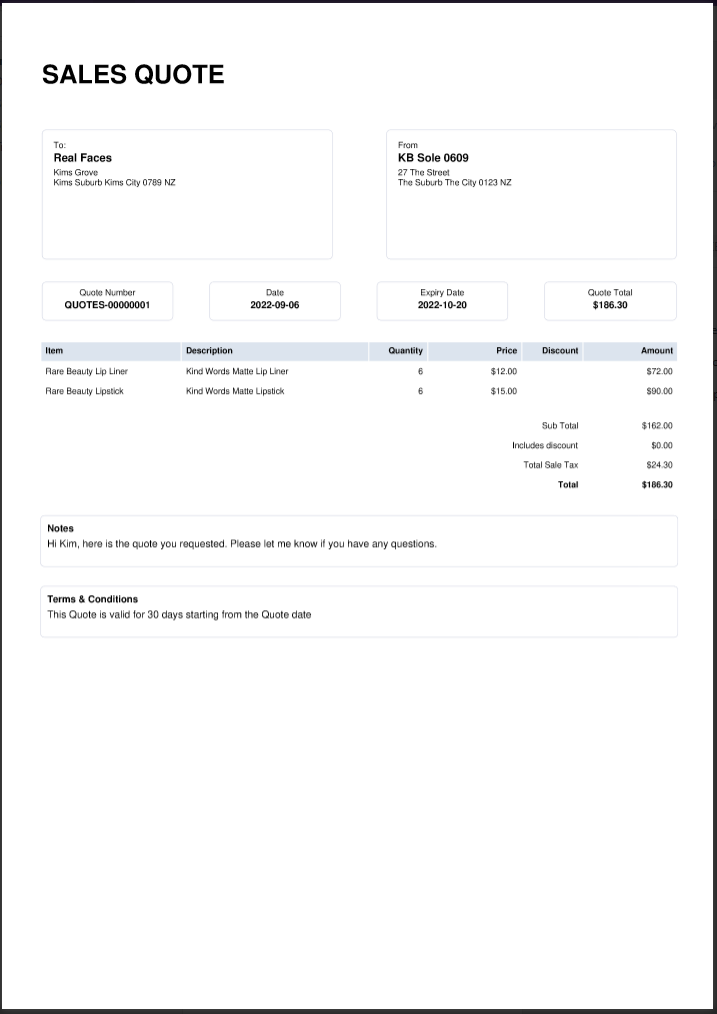
The quote screen is headed QUOTE and begins with a DRAFT status. Use View/download to check it. Select Send only when the quote is ready for the customer and review the next prompt before confirming.
The current overview groups quotes as Drafts, Awaiting Approval, Accepted and Invoiced. Exact conversion controls are not included here because no safe existing quote was available to verify them.