Afirmo partners with Akahu to connect your bank account(s) and import your bank transactions. Our Money tool allows you to Match and Categorise each transaction to ensure the Tax tool can accurately calculate your Income tax due and GST payments (if you are GST registered). Below is a step by step view of the screens you will see when you click + CONNECT YOUR BANK ACCOUNTS. Some screens will differ slightly with different access rights and different Bank requirements.
On the main menu, click on Money and then select Overview
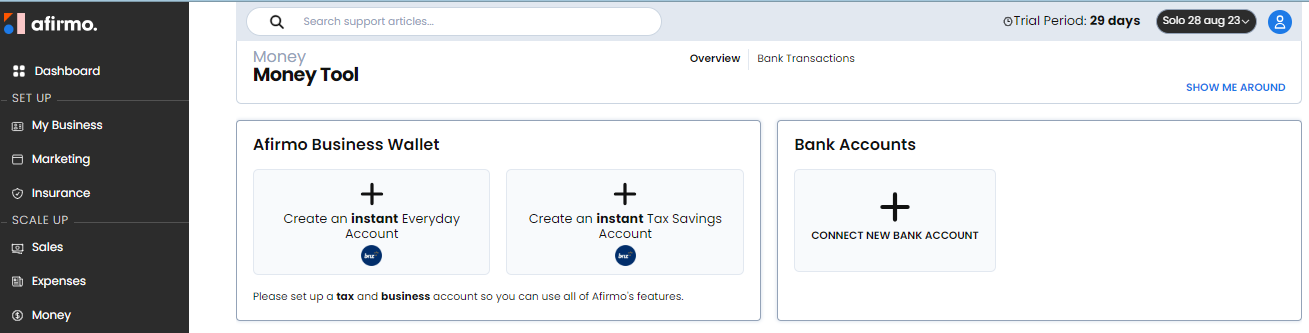
Click on + CONNECT NEW BANK ACCOUNT
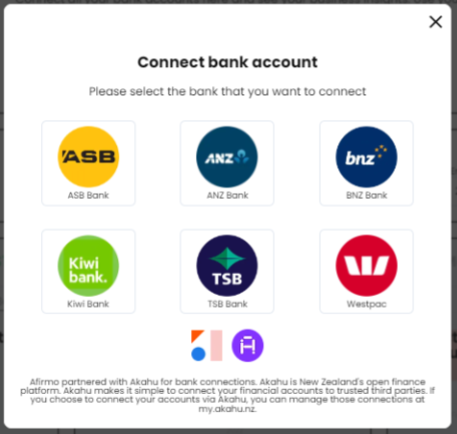
Click on your Bank's icon
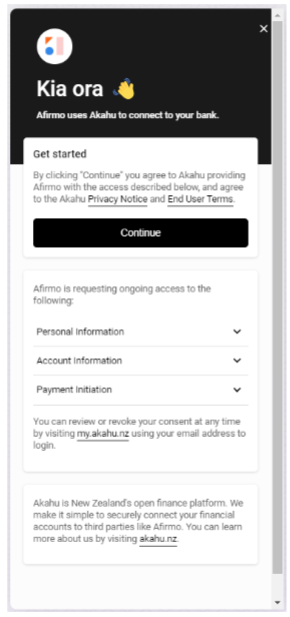
A new window will open with Akahu. Click Continue
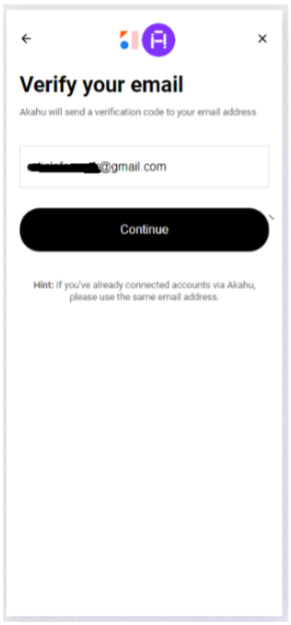
You will be prompted to verify your email address (the one you created the Afirmo account with). Make sure you have access to your email inbox and click Continue
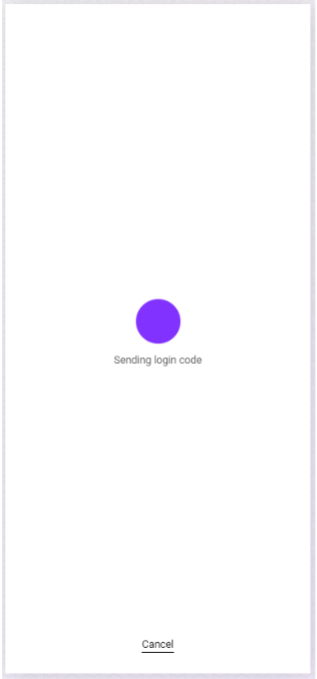
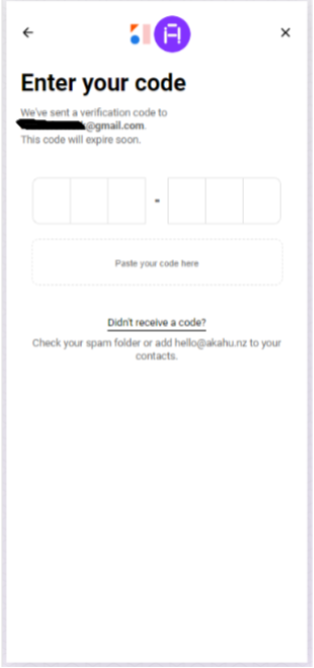
Akahu will send the verification code and then show the screen for the code to be entered
Email Sample 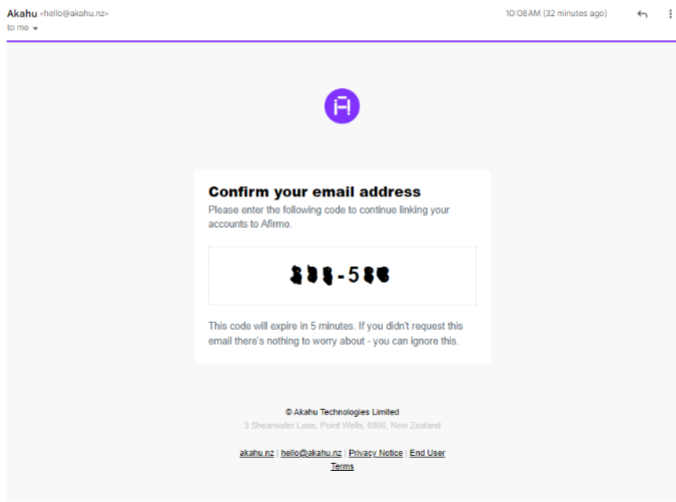
As soon as you enter the correct code, the screen will change to show you the connection is starting

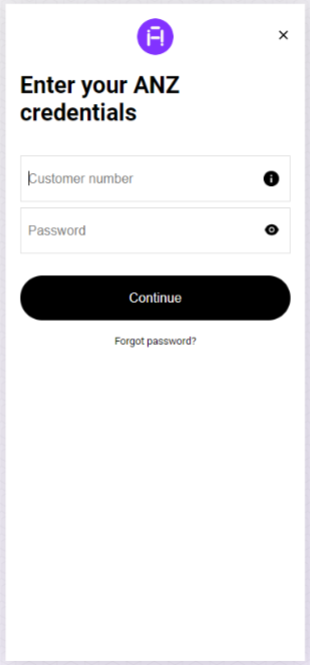
Next you need to enter the Customer number and Password for your bank account. Click Continue once you have added your details.

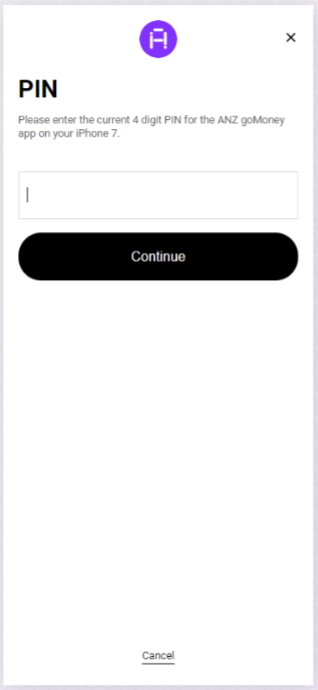
You will be prompted to enter a code sent by your bank. The screen will differ between banks and what access has been setup e.g. 2factor authentication.
example 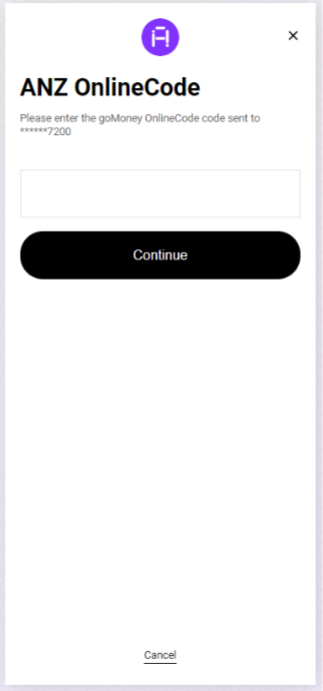
example 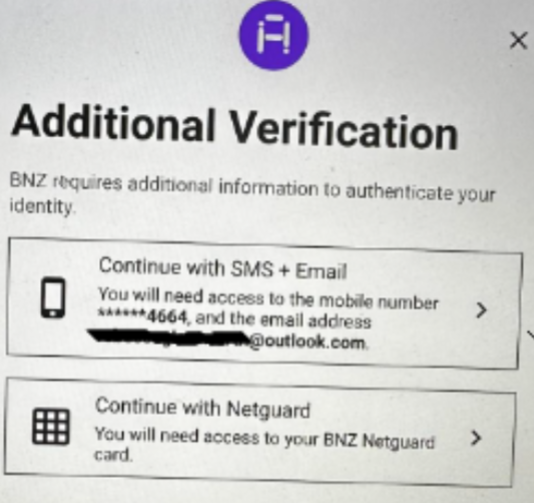
example
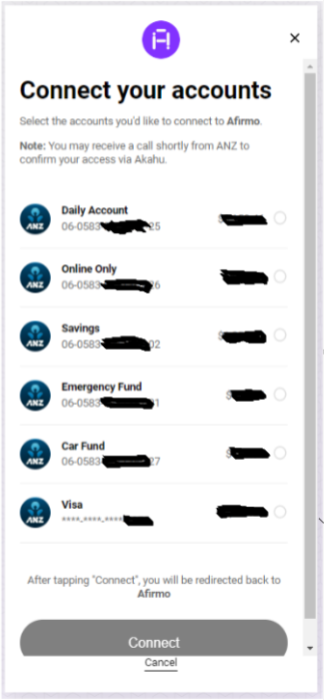
--- Once access has been established, a list of your available accounts will show. Click in the circle to the right on each bank account you want to import into Afirmo
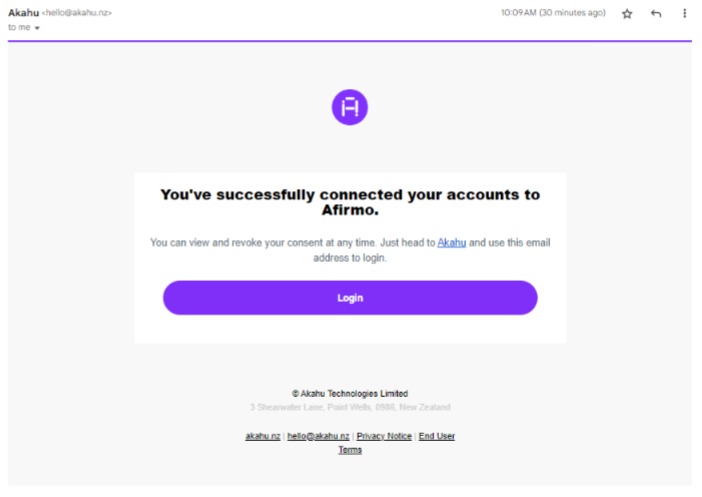
The final screens from Akahu are confirmation of connecting your bank accounts and finally, the re-direct back to Afirmo


Sample Email
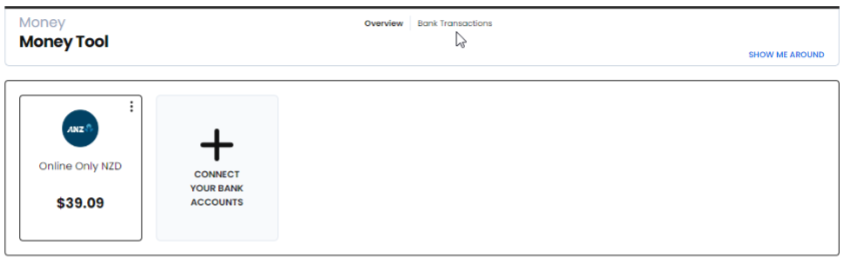
--- The app will list the bank account(s) you have authorised via Akahu
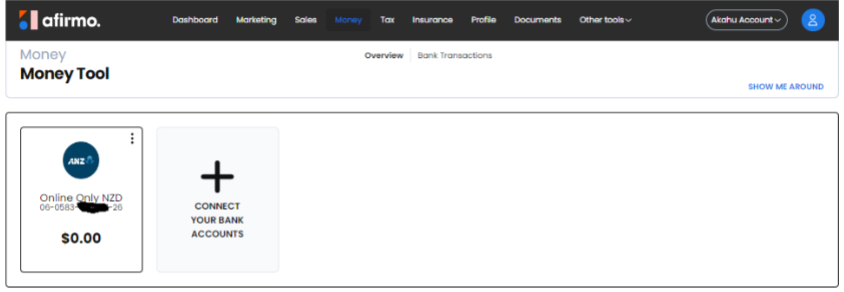
NB On each of the bank accounts you have attached, you must complete the following step to begin importing transactions.
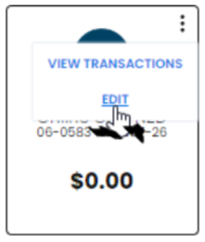
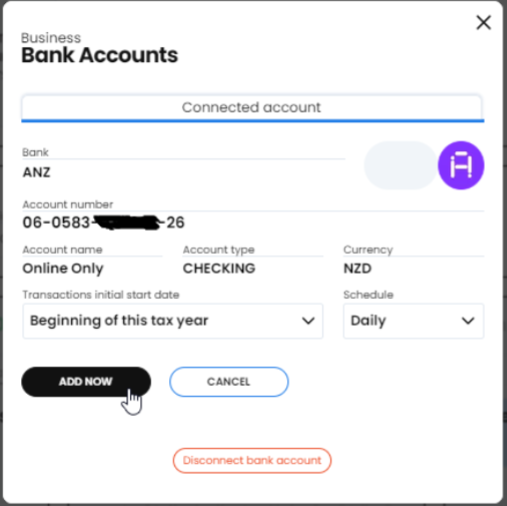
Click on the 3 dots in the top right corner of each bank account. Select EDIT from the menu
Complete the two compulsory fields, Transactions initial start date and Schedule
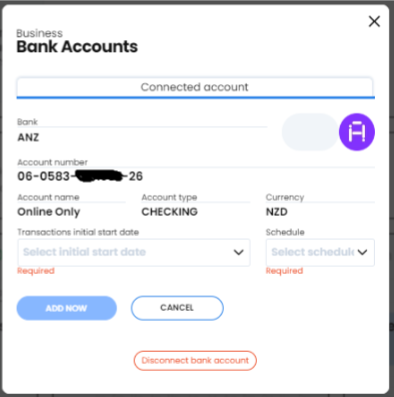
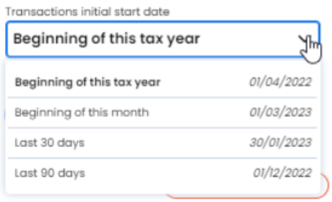
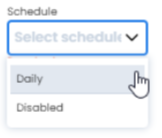
Once you have completed the fields, click ADD NOW
Click the X in the top right corner when you have finished editing the account
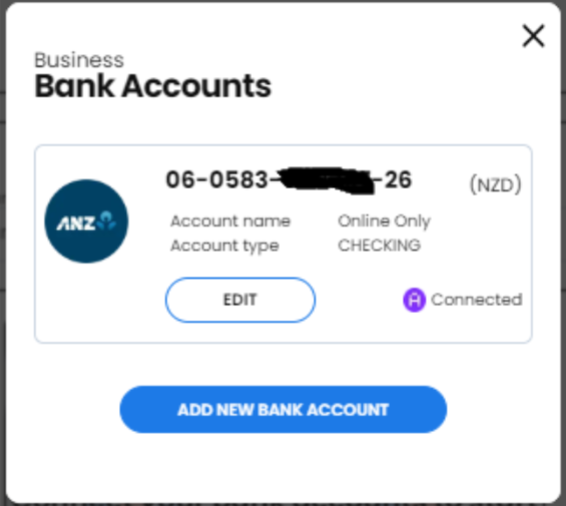
Your bank account will begin importing transactions
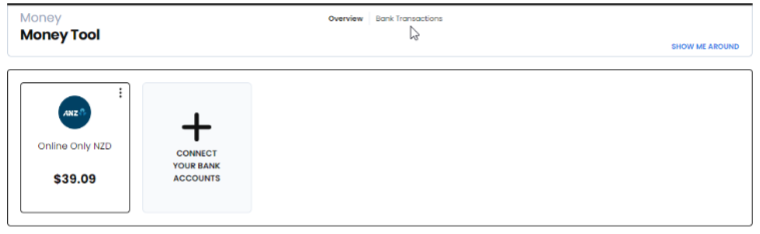
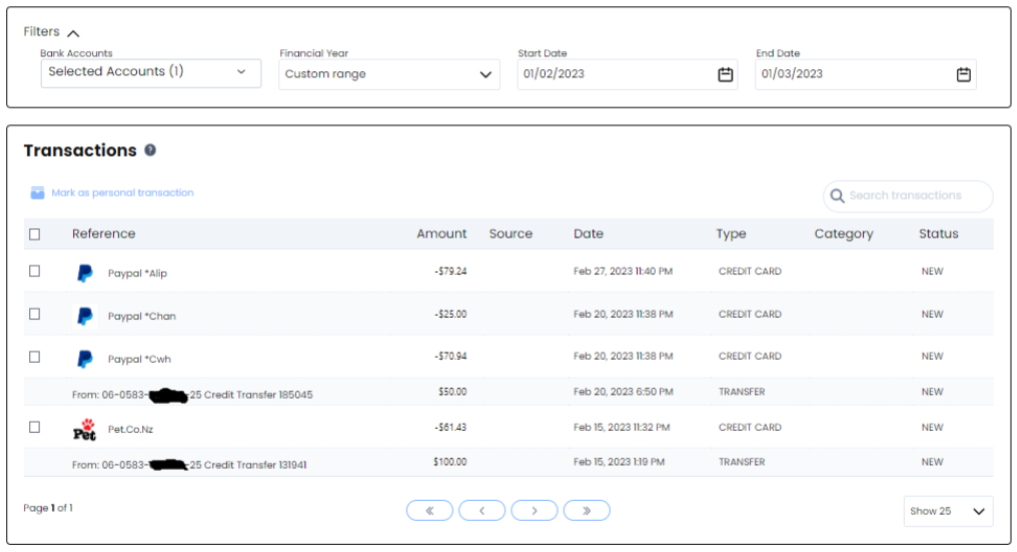
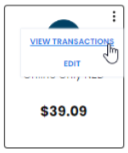
There are two ways to view your transactions. You can use the 3 dots menu on your bank account and select VIEW TRANSACTIONS or just below the main header, there is a quick menu Bank Transactions
OR
Use the Filters at the top to change your view and see older transactions or just the last week etc.